Microsoft Teams transcription works best when you start it during the meeting, not after everyone hangs up. If you need speaker labels, timestamps, and a file you can keep, turn on live transcription, let Teams capture the conversation in real time, then download the transcript as VTT or DOCX from the meeting recap.
How do you turn on Microsoft Teams transcription?
In a scheduled Teams meeting, open More actions, choose Record and transcribe, then select Start transcription. Microsoft says recording a meeting can also start transcription automatically, but the important part is the same: confirm the spoken language before people get deep into the discussion (Microsoft Support).
If the menu is missing, your Teams admin may have transcription turned off. Microsoft documents transcription as both a per-organizer and per-user policy, so the organizer and the person starting the transcript both need permission.
Do it during introductions. If you wait until minute 12, Teams cannot recreate the first 11 minutes unless you recorded the meeting and have another transcription pass later.
Pick the language people are actually using. A wrong language setting is one of the fastest ways to turn decent meeting audio into junk text.
Teams shows participants that the meeting is being transcribed. For sensitive calls, say it out loud anyway and make sure your company policy allows it.
For messy rooms, the same basics still matter: one person speaks at a time, microphones stay close, and the meeting room does not become a speakerphone echo chamber. If the audio is already rough, use the checklist in best practices for audio quality before transcribing before blaming the transcript.
What do Teams speaker labels include?
Teams transcripts can show who spoke and when. Microsoft describes Teams transcription as a written meeting record with timestamps and speaker attribution, while live captions are only real-time subtitles and are not saved as captions after the meeting (Microsoft Learn).
That distinction matters. A transcript is evidence you can revisit. Captions are a viewing aid.
Speaker labels are usually strongest when each person joins from their own Teams account and microphone. The transcript can attach turns to named participants because Teams knows who is speaking from which client. In a conference room, speaker labels are harder. Ten people around one table can look like one room device unless the room is set up for speaker recognition.
How do you download a Teams transcript?
After the meeting, open the past meeting chat or calendar event, go to Recap, select Transcript, then use the download menu. Microsoft says meeting organizers and co-organizers can download the transcript as .docx or .vtt by default, with broader download access depending on admin policy (Microsoft Support).
Pick the file based on what you are doing next:
| Need | Download | Why |
|---|---|---|
| Meeting notes | DOCX | Easy to edit, share, and mark up |
| Captions or subtitles | VTT | Keeps timed cues for video playback |
| Searchable archive | DOCX or VTT | DOCX reads better; VTT preserves timing |
| Editing a recording | VTT | Timestamps help you jump to the right moment |
If you are deciding between timed captions and a plain transcript, the tradeoff is the same one covered in SRT vs plain transcript: which should you choose?. Use timed text when the transcript needs to stay attached to the video. Use a plain document when the transcript is mainly for reading.
Can Teams transcribe a recording after the meeting?
Teams is built around live transcription for meetings. If transcription was not on during the meeting, Microsoft says the recording does not have a transcript file stored next to it, and captions cannot be turned on during playback in Stream (Microsoft Learn).
That is the moment to use a separate transcription tool. Download the meeting recording if you have permission, then transcribe a video from the file. This is also the cleaner path when someone sends you a recording from outside your organization, a webinar export, or a screen recording that never had Teams transcription enabled.
Paste any public link or upload a file and get a clean transcript in minutes. First 3 clips every month are on us — no card required.
Why are Teams speaker labels sometimes wrong?
Speaker labels fail for practical reasons, not mysterious ones.
- People talk over each other.
- Two people share one laptop.
- A conference room microphone captures the whole table as one source.
- Someone dials in by phone without a clear identity.
- Names, acronyms, and product terms sound like ordinary words.
Microsoft's Intelligent Speaker setup is meant to improve room attribution. In Teams Rooms, voice recognition and supported room hardware can distinguish between different in-room speakers and attribute them to the correct person; Microsoft also notes that certified intelligent speakers are designed to improve transcription and recognition quality (Microsoft Learn).
Even then, treat names as the first thing to audit. The transcript may know someone spoke at 14:32, but it can still put the sentence under the wrong person when the room setup is poor.
Who can view or change the transcript?
Do not assume everyone in the meeting can download or edit everything. Teams stores transcripts with meeting recordings in OneDrive and SharePoint, and admin policies can control transcription, captioning, and access (Microsoft Learn).
The practical version:
- The organizer and co-organizers usually have the most control.
- Download access may be limited by policy.
- Transcript deletion and editing are separate from normal note-taking.
- Guests and external attendees may have less access than employees.
For client calls, legal discussions, interviews, and HR meetings, decide the access model before the call starts. A transcript is not just a convenience file. It is a record.
What is the clean workflow for meeting notes?
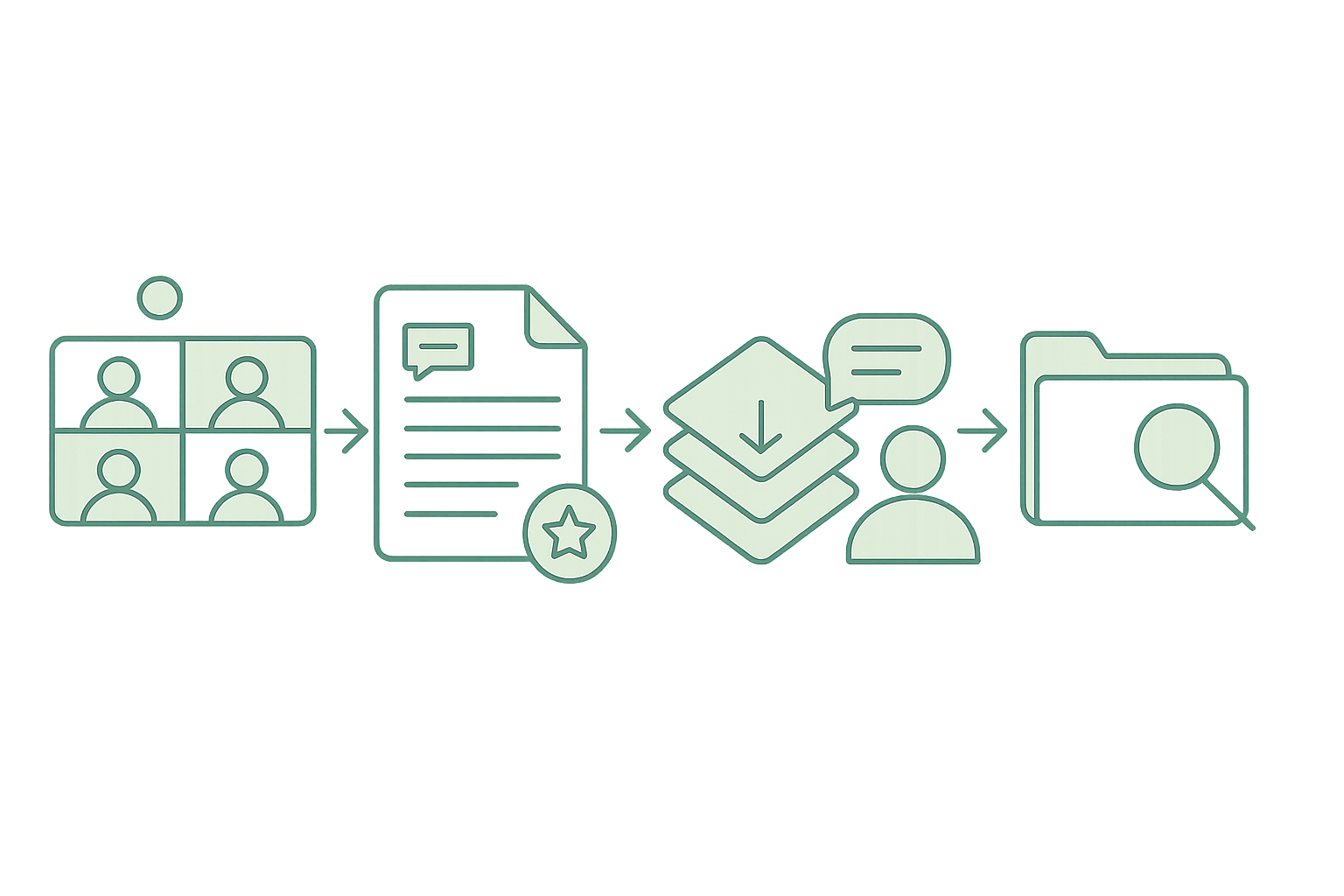
For a normal internal meeting, the best workflow is simple:
- Start Teams transcription at the beginning.
- Download VTT if the recording matters, or DOCX if the notes matter.
- Fix speaker names first.
- Clean obvious terms, names, and acronyms.
- Pull decisions, owners, and dates into your project notes.
- Archive the source transcript with the meeting record.
For interviews, research calls, or long recordings, plan for a second pass. Teams gets you a usable first record, but careful cleanup is where the value appears. If the meeting runs long, the advice in working with long-form transcripts applies here too: split the review into sections, keep timestamps, and edit around decisions instead of polishing every filler word.
Sources
- Microsoft Support, "Start, stop, and download live transcripts in Microsoft Teams meetings" — https://support.microsoft.com/en-us/office/start-stop-and-download-live-transcripts-in-microsoft-teams-meetings-dc1a8f23-2e20-4684-885e-2152e06a4a8b
- Microsoft Learn, "Admins: Manage transcription and captions for Teams meetings" — https://learn.microsoft.com/en-us/microsoftteams/meeting-transcription-captions
- Microsoft Learn, "Manage voice recognition for Intelligent Speaker" — https://learn.microsoft.com/en-us/microsoftteams/rooms/voice-recognition