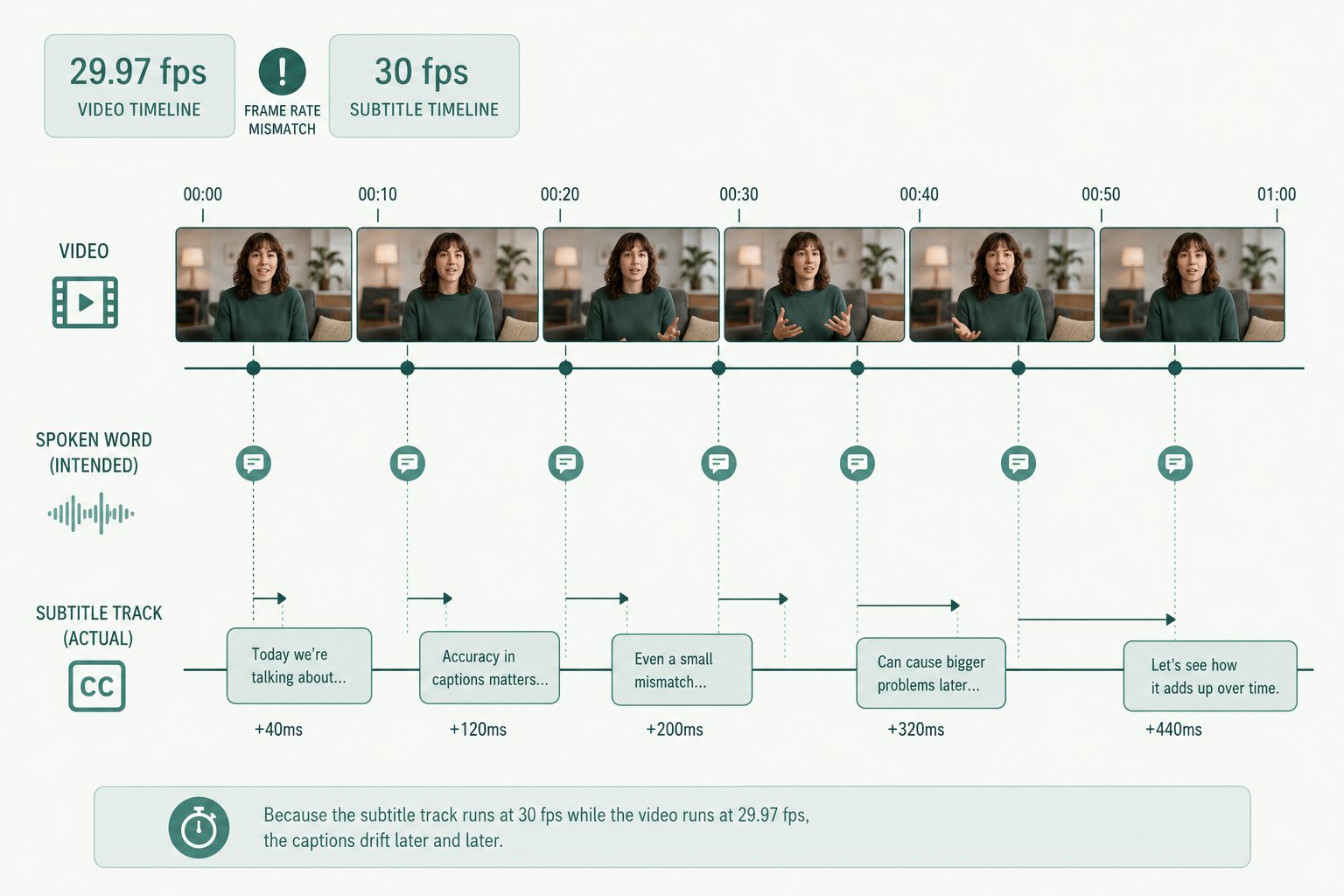
Your subtitles matched fine at the start and ended two sentences late. That's drift, and the fix is almost always one of six things. Start with frame rate — it's the most common cause and the fastest to rule out.
Here's the diagnostic trick that saves the most time: if the gap is constant across the whole video, you have an offset problem. If the gap grows as the video plays, you have a frame rate or sample rate problem. That single distinction cuts the fix list in half before you open a single tool.
- Growing gap → frame rate mismatch. Constant gap → offset.
- 29.97 → 30 fps drift = ~3.6 seconds per hour.
- Trimmed silence after transcription is the sneakiest cause; regenerate against the final cut.
- VLC respects timestamps literally — use it as your reference player.
- If the source was recut, regenerating beats patching almost every time.
Why does my SRT drift later in the video?
A drift that grows over time is almost always a frame rate mismatch between the subtitle file and the video. The classic cases:
- The SRT was authored against a 29.97 fps master, and the export is 30 fps (or vice versa).
- The SRT was built for a 23.976 fps cinema cut, and the deliverable is 24 fps for streaming.
- The footage was conformed from PAL (25 fps) to NTSC (29.97 fps) without re-timing the subtitles.
A 29.97 → 30 fps mismatch produces drift of roughly 3.6 seconds per hour — small enough to be invisible at the start, painful by the end.
How to confirm. Open the source video in any player that shows the frame rate (VLC's Codec Information panel, MediaInfo, or ffprobe -show_streams). Compare to whatever rate the SRT was built against. If they differ, that's your culprit.
The fix. Re-time the SRT to the new frame rate. In Subtitle Edit, use Synchronization → Change frame rate. In Aegisub, Timing → Shift Times with a ratio. You can also do it in ffmpeg with the subtitles filter, but a dedicated editor is faster.
Why is my subtitle off by a constant few seconds?
If every line lags by the same amount, you have an offset, not drift. Common causes:
- The video has a leader, slate, or pre-roll the subtitle author didn't account for.
- The SRT was made against an earlier cut and the new cut added or removed intro material.
- A few older players (and some embedded streams) add their own playback offset on the first chunk.
How to confirm. Pick three lines spread across the video and measure the gap at each. If the gap is the same, it's an offset.
The fix. In Subtitle Edit, Synchronization → Adjust all times and apply the offset (positive pushes subs later, negative pulls them earlier). Done in seconds.
Did trimmed silence in the source cause my drift?
This one's sneaky. If you (or your editor) cut silences out of the source after the transcript was generated, the SRT still references the original timeline. The first splice marks the start of the drift, and every subsequent splice compounds it.
How to confirm. Subtitles are correct up to some point mid-video, then a sudden offset, then more drift after the next cut.
The fix. You can't reliably patch this. Regenerate the SRT against the final cut of the video. That's faster than chasing each splice. If you're a video editor working this way often, the timestamps you really need to keep accurate come from the transcript pass on the finished cut.
Can VLC, YouTube, and Premiere show different timing for the same SRT?
Yes, occasionally. SRT is a plain-text format with no frame-rate header, so each player interprets the timestamps with its own reference clock. A file that's fine in VLC can drift in Premiere if the project sequence frame rate doesn't match the source.
- Premiere / DaVinci Resolve. The sequence frame rate wins. Conform the SRT to the sequence rate on import.
- YouTube. Re-encodes everything to its own framerate ladder; an SRT that passes timing on YouTube can still be wrong locally.
- VLC. Respects the timestamps literally, which is exactly what you want when checking an SRT in isolation.
If timing is right in VLC but wrong in your NLE, the issue is on the NLE side — almost always a sequence/source mismatch.
How do I fix drift in Subtitle Edit step by step?
Subtitle Edit is the free Windows tool most caption pros reach for first. It also runs on macOS via Wine, and there's a browser version for quick one-offs.
Open the video and the SRT in Subtitle Edit (drag both in).
Play to the first spoken line and note the real timestamp.
Synchronization → Adjust all times — enter the offset to align that first line.
Scrub to the last spoken line in the video.
If it matches now, you're done. If it drifts later, Synchronization → Point Sync — set point 1 at the start and point 2 at the end. Subtitle Edit will linearly re-time everything in between.
Save as a new SRT. Don't overwrite the original until you've tested it in the player you'll actually deliver to.
Aegisub is the equivalent on macOS and Linux and has the same Point Sync feature under Timing.
Should I regenerate the SRT instead of patching it?
Often, yes. Especially if:
- The source was recut, reconformed, or had silences trimmed.
- The original SRT was a YouTube auto-caption export (frame-rate ambiguous, awkward line breaks, no diarization).
- You're seeing both drift and speaker mismatches — at that point it's faster to start over than to fix both.
A fresh SRT against the final cut takes a few minutes if you transcribe the finished video and export to SRT. The new file is locked to the real timeline, so drift can't reappear. If you're picking the export format in the first place, our walkthrough on SRT vs plain transcript covers when to use which.
When the drift won't go away, what next?
A few rarer cases that look like SRT problems but aren't:
- Variable Frame Rate (VFR) source. Smartphone footage often records at "up to 30 fps" but varies. Convert to constant frame rate with
ffmpeg -i in.mp4 -vsync cfr -r 30 out.mp4before subtitling. - Audio sample-rate mismatch. Rare, but on very long files (over two hours) a 0.1% sample-rate drift can compound visibly.
- A bad SRT writer. Some tools emit timestamps with millisecond rounding errors that pile up over thousands of lines.
If you've ruled all that out and timing is still wrong, the SRT itself is probably damaged. Re-export from the source transcript, or generate a new one. The SRT format walkthrough covers what a clean file should look like.
Paste any public link or upload a file and get a clean transcript in minutes. First 3 clips every month are on us — no card required.
Sources
- SubRip (SRT) format reference — Wikipedia
- Subtitle Edit documentation — Nikse
- Aegisub manual — Aegisub
- ffmpeg subtitles and timing filters — FFmpeg
- Matroska subtitle technical notes — Matroska