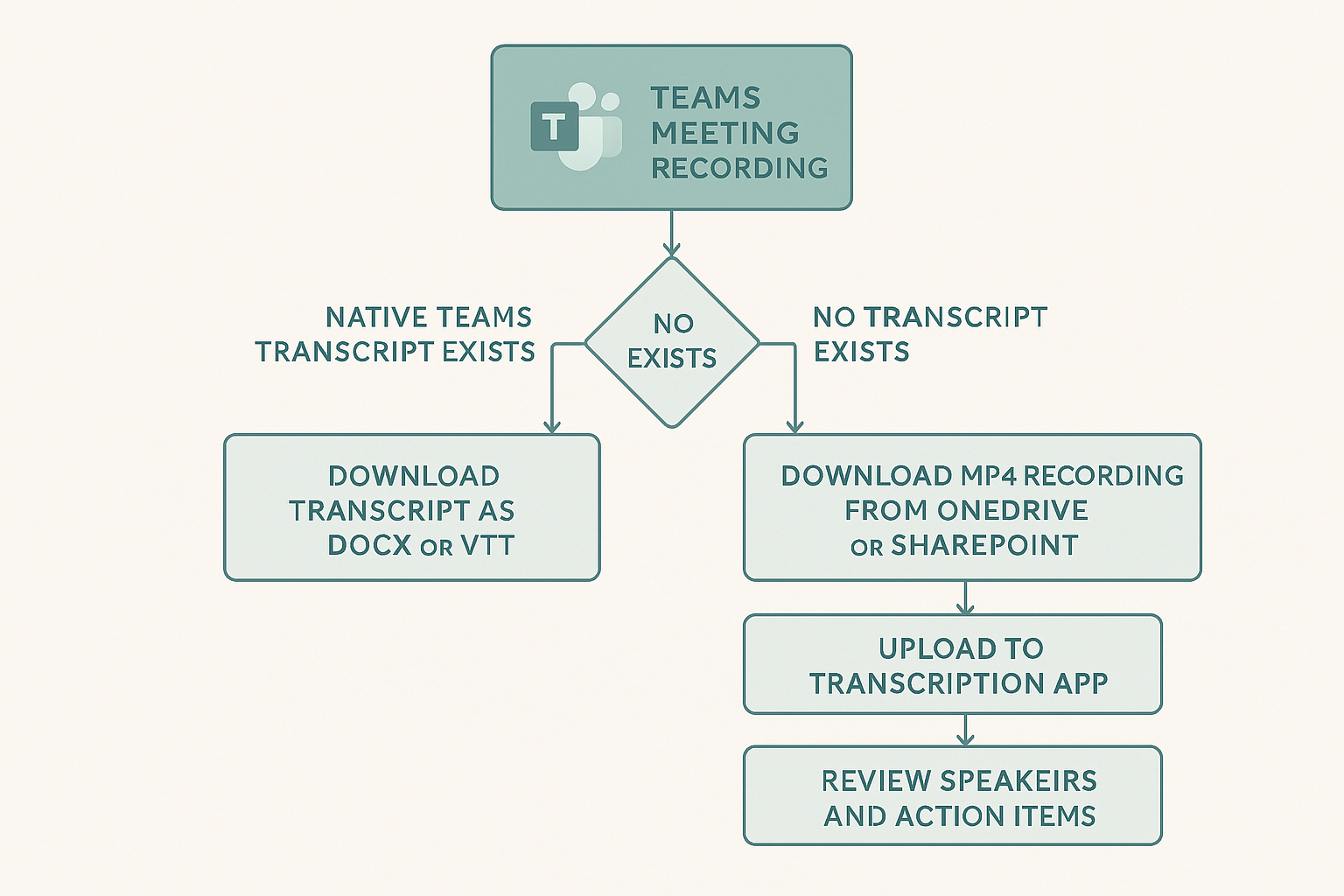
If you need to transcribe a Microsoft Teams meeting recording, start with Teams' own transcript if it exists. If it doesn't, download the recording and send the video through a transcription tool, because Teams usually needs transcription turned on during the meeting to give you a native transcript afterward.
How do you transcribe a Teams meeting recording?
There are two workable paths. The cleanest one is to start live transcription during the meeting, then use the transcript in Teams afterward. The fallback is to download the recording and transcribe the video separately.
Open the meeting in Teams, go to the recap or meeting chat, and look for the transcript next to the recording. Microsoft documents live transcripts as part of Teams meetings, with transcript download available after the meeting when your tenant allows it ([Microsoft Support](https://support.microsoft.com/en-us/office/start-stop-and-download-live-transcripts-in-microsoft-teams-meetings-dc1a8f23-2e20-4684-885e-2152e06a4a8b)).
Use the Teams transcript download option when it is available. Choose the format based on the job: document text for review, or VTT if you need timecodes for captions.
Teams meeting recordings are stored in OneDrive or SharePoint depending on the meeting type, and Microsoft points users back to the recording location for playback and download controls ([Microsoft Support](https://support.microsoft.com/en-us/office/record-a-meeting-in-microsoft-teams-34dfbe7f-b07d-4a27-b4c6-de62f1348c24)). If you have the file, you can upload it to a transcription app.
Upload the file, generate the transcript, then fix speaker names, acronyms, and action items while the meeting is still fresh. This is also the point where you decide whether you need a readable transcript, captions, or both.
For a one-off recording, this is exactly where transcribe a video fits: upload the Teams file, get the text, and export it without fighting your company's Teams policy settings.
Teams puts meeting artifacts near the meeting itself: the chat, calendar event, recap view, and the underlying OneDrive or SharePoint file location. The exact screen depends on whether it was a channel meeting, a private meeting, or a meeting created from Outlook.
That location detail matters because "I recorded the meeting" and "I can download the transcript" are not the same permission. A teammate may be able to watch the recording but not see every transcript control. If you are the organizer or co-organizer and still cannot find it, check the meeting recap first, then the recording file in OneDrive or SharePoint.
Can Teams transcribe a meeting after it was recorded?
Do not count on Teams to create a normal meeting transcript after the fact. The native workflow is built around live transcription during the meeting, and Microsoft treats transcription and recording as policy-controlled meeting features (Microsoft Learn).
The practical answer is simple: if nobody started transcription, use the recording file. Download the MP4 and run it through a separate transcription workflow. That gives you a transcript even when the Teams transcript button never appeared.
Tip: If this is a recurring meeting, add "start transcription" to the host checklist. It is much easier than reconstructing speaker context later.
Who can start, stop, or download a Teams transcript?
It depends on the meeting role and the organization's Teams policy. In practice, organizers and co-organizers are the people most likely to have the full set of transcript controls. Presenters and attendees may see fewer options, especially in managed company tenants.
If you own the meeting and the control is missing, the problem is often administrative rather than personal. Teams admins can control transcription through meeting policies in the Teams admin center, including whether transcription is allowed for a group of users (Microsoft Learn).
Why is the transcript button missing in Teams?
The most common reason is policy. Your organization may have disabled transcription, limited it to certain users, or restricted it for compliance reasons. That is especially common in schools, healthcare, finance, and large companies with strict recording rules.
The second reason is meeting type. Channel meetings, external guests, webinars, and meetings created under another organizer's account can behave differently from a standard internal meeting. Before you blame the recording, ask three questions:
- Was live transcription enabled before or during the meeting?
- Was the meeting organizer allowed to transcribe under the tenant policy?
- Are you looking from the organizer's account, not just an attendee account?
If the answers are murky, download the recording and transcribe that file. For better results next time, pair that with the recording habits in best practices for audio quality before transcribing.
Should you export DOCX, VTT, or plain text?
Pick the format based on the next job, not on what looks neat in the download menu.
| Format | Use it when | Watch out for |
|---|---|---|
| DOCX | You need meeting notes, review copy, or a file someone can edit in Word | It is not ideal for captions or time-based review |
| VTT | You need timestamps, captions, or subtitle editing | It is structured for timed text, so it can feel noisy as a reading copy |
| Plain text | You want a clean transcript for search, summaries, or documentation | You may lose timing and speaker metadata unless you preserve it separately |
VTT is the format to keep when captions matter. The WebVTT specification is designed for timed text tracks such as captions and subtitles (W3C), which is why it works better than a normal document when you are lining words up with video.
If you are not sure, keep both a readable transcript and a timed file. The tradeoff is similar to the one in SRT vs plain transcript: which should you choose?: text is better for reading, timed subtitles are better for playback.
Paste any public link or upload a file and get a clean transcript in minutes. First 3 clips every month are on us — no card required.
How accurate is a Teams meeting transcript?
Accuracy depends less on Teams and more on the meeting. A clean headset, one person speaking at a time, and clear names for speakers will beat a laptop mic in a noisy conference room every time. Heavy accents, crosstalk, legal names, product names, and acronyms are where automatic transcripts usually need human review.
For most business meetings, the first cleanup pass should focus on decisions and commitments. Fix names, dates, dollar amounts, and action items before you worry about every filler word. If the transcript is going into a client record, public notes, or a compliance workflow, budget time for review. The broader accuracy tradeoffs are covered in transcription accuracy: what to expect.
What is the fastest workflow if Teams did not make a transcript?
Download the recording, transcribe the MP4, then clean the transcript against the first ten minutes of audio before sharing it. That quick listen catches the recurring mistakes: the product name Teams heard wrong, the speaker it merged, or the acronym it spelled three different ways.
For long meetings, do the cleanup in passes:
- Rename speakers.
- Fix repeated terms once and search for the rest.
- Pull out decisions, owners, and deadlines.
- Export a reading copy and, if needed, a caption file.
That workflow is faster than trying to recreate the whole meeting from memory, and it gives you a useful transcript even when Teams' built-in transcript never showed up.
Sources
- Microsoft Support, "Start, stop, and download live transcripts in Microsoft Teams meetings": https://support.microsoft.com/en-us/office/start-stop-and-download-live-transcripts-in-microsoft-teams-meetings-dc1a8f23-2e20-4684-885e-2152e06a4a8b
- Microsoft Support, "Start, stop, and find meeting recordings in Microsoft Teams": https://support.microsoft.com/en-us/office/record-a-meeting-in-microsoft-teams-34dfbe7f-b07d-4a27-b4c6-de62f1348c24
- Microsoft Learn, "Admins: Manage transcription and captions for Teams meetings": https://learn.microsoft.com/en-us/microsoftteams/meeting-transcription-captions
- W3C, "WebVTT: The Web Video Text Tracks Format": https://www.w3.org/TR/webvtt1/