The short answer
If you're embedding captions in a web video using HTML5's <track> element, you need WebVTT (.vtt). Browsers do not parse .srt files natively, and they fail silently when you point a track at one. For almost everything else — video editors, YouTube, Vimeo, Plex, mkv tooling, broadcast pipelines — SRT is fine and often expected.
Both formats carry the same fundamental data: a numbered list of timed text cues. The difference is what they let you do with that text and where each one is accepted.
What's actually different between VTT and SRT?
The two formats look nearly identical at first glance, then quietly diverge.
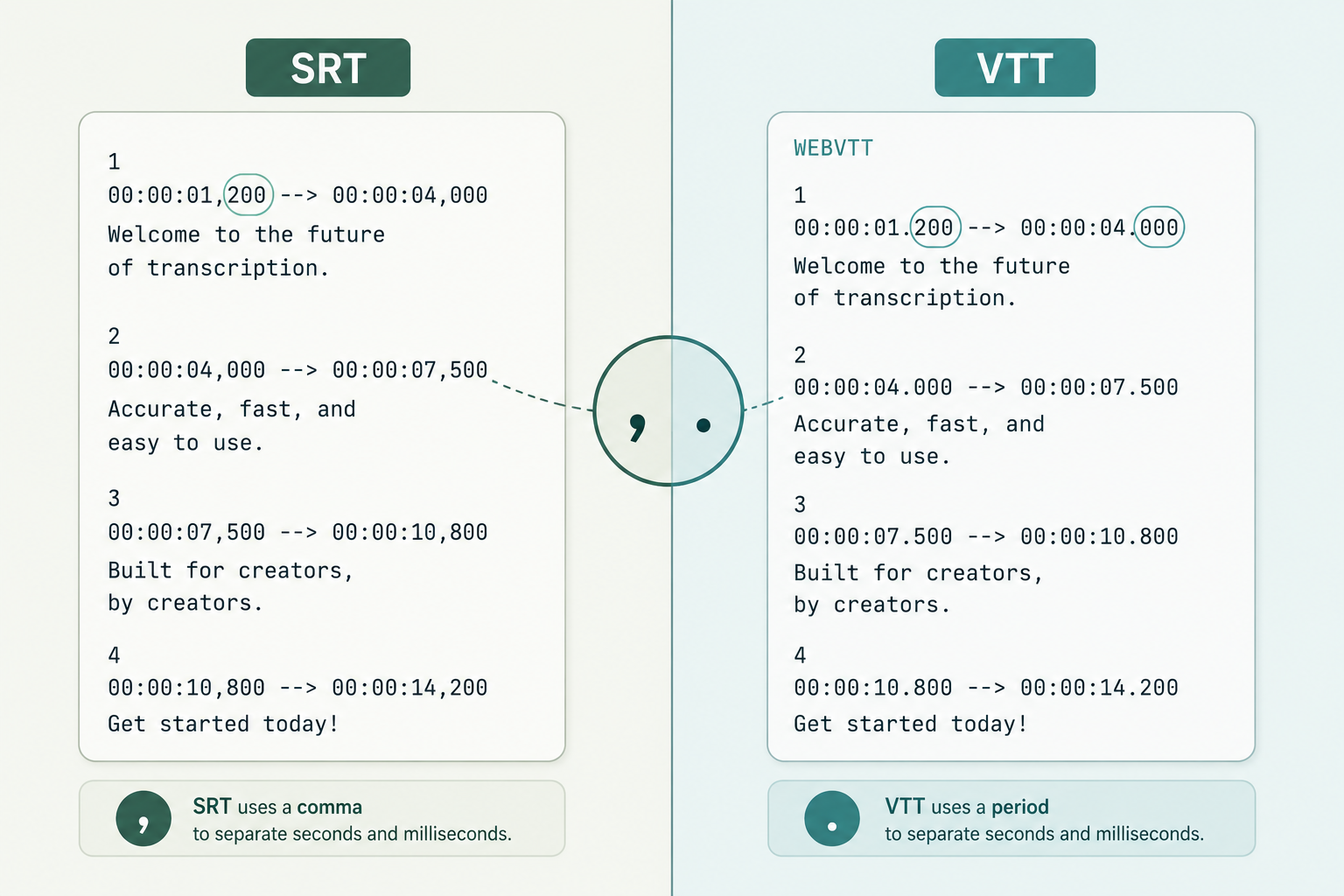
Timestamps. SRT uses a comma for the milliseconds separator: 00:00:01,200. WebVTT uses a period: 00:00:01.200. That single character is the most common conversion bug.
File header. A WebVTT file must start with WEBVTT on the first line, followed by a blank line. SRT has no header — the file just begins with cue 1.
Cue identifiers. SRT cues are numbered sequentially (1, 2, 3...). WebVTT cue IDs are optional and can be any string, which makes them addressable from JavaScript by name.
Styling and positioning. This is the real divide. WebVTT supports cue settings (line:0, position:50%, align:middle) and CSS styling via the ::cue pseudo-element. SRT supports a handful of inline HTML-like tags (<b>, <i>, <u>, <font>) that some players honor and others ignore.
Speaker tags. WebVTT has a native voice tag (<v Maria>Hello there) that CSS can target with ::cue(v[voice=Maria]). SRT has no equivalent — speaker labels live in the cue text itself, usually as MARIA: prefixes.
Metadata tracks. WebVTT can carry chapter markers, screen-reader descriptions, and JSON metadata cues via the kind attribute on <track>. SRT carries only display text.
Where does each format actually work?
Both YouTube and Vimeo accept either format and convert internally. Most video editors — Premiere, Final Cut, DaVinci Resolve — import both. So the caption file you receive from a transcription service in either format will land in most everyday workflows.
The hard line is HTML5 video. The <track> element is specified to accept only WebVTT. Chrome, Safari, Firefox, and Edge will all silently fail to render an .srt linked from <track>. No console error, just no captions on screen. If your captions are going on a web player you control, you need .vtt.
Streaming gets more nuanced. HLS and MPEG-DASH can segment WebVTT directly into the manifest. Broadcast and OTT pipelines often expect TTML or EIA-608 instead, neither of which is in this comparison — that's a separate decision tree.
When should you pick SRT?
Pick SRT when the file's final destination is a video editor, an mkv container, a broadcast or post-production pipeline, or a consumer player like VLC, Plex, mpv, or almost any smart TV. It's the lowest-common-denominator format and tools have been parsing it for two decades.
If a transcription service offers both and you're handing the file off to an editor for burn-in or uploading to YouTube, SRT is the safer default. The parsers are battle-tested, and there's almost no chance of a styling tag misrendering on a target you can't control.
It's also the format to choose when captions will eventually be the source for a plain transcript — SRT's simplicity makes it trivial to strip out the timing and keep the text.
When should you pick WebVTT?
Pick WebVTT when captions are going on a web player using HTML5 video, when you need positioned or styled cues for design or accessibility reasons, or when you want speaker tags that CSS can color differently per voice.
WebVTT is also the right call when captions carry secondary information — chapters for navigation, audio descriptions, or programmatic cue data your player consumes. If captions are part of the product experience rather than an afterthought, WebVTT gives you the surface area to make them look right.
For accessibility, WebVTT's expressiveness genuinely matters: positioning lets a caption avoid covering an on-screen graphic, and the voice tag makes it possible to visually distinguish speakers, which the WCAG captions guidance treats as a real usability win for viewers who rely on captions.
How do you convert SRT to VTT (or back)?
The conversion is honestly trivial. To go from SRT to VTT:
Add WEBVTT as the first line of the file, followed by a blank line.
Replace every comma in timestamps with a period. 00:00:01,200 becomes 00:00:01.200.
Save with a .vtt extension.
That's it. The cue text and numbering carry over unchanged.
To go the other way, strip the WEBVTT header, change the period back to a comma in timestamps, and remove any WebVTT-only bits — cue settings after the timestamp like line:0 align:middle, voice tags like <v Maria>, and any NOTE blocks. Most players will tolerate them being left in, but strict SRT parsers will complain.
Plenty of free tools do this in one step: ffmpeg, the webvtt-py CLI, and most online converters. If you're starting from raw audio or video, the more reliable workflow is to transcribe the video directly into the format you actually need rather than converting after the fact.
Which is better for accessibility?
WebVTT, by a meaningful margin — but the format alone doesn't make captions accessible. The text quality, line length, speaker identification, and synchronization matter far more than the file extension.
What WebVTT gives accessibility specifically: voice tags for speaker identification, cue positioning to avoid covering important visuals, and a kind="descriptions" track type for audio description, which SRT cannot carry at all. For ADA and Section 508-style compliance on a website you control, WebVTT is the more capable format because it can express things SRT structurally cannot.
That said, a well-formatted SRT with accurate text, proper speaker labels, and clean synchronization is more accessible than a sloppy WebVTT. Format is the floor, content is the ceiling.
The verdict, in one sentence
If captions are going on a web player you control, produce WebVTT; for everything else, SRT is fine and often expected — and when you need to move between them, the conversion is one search-and-replace.
Paste any public link or upload a file and get a clean transcript in minutes. First 3 clips every month are on us — no card required.